
Downloading your verification results: formats, filters, and the 15-day window
Your verification is done. Time to pull the results.
You get full control over the export — download everything at once, or filter by status and grab only the rows you need. CSV, XLSX, JSON, and TXT are all supported. This page walks through each option.
Getting to the details page
- Open Uploads & Results in the sidebar.
- Find the completed job in the list.
- Click View Results.
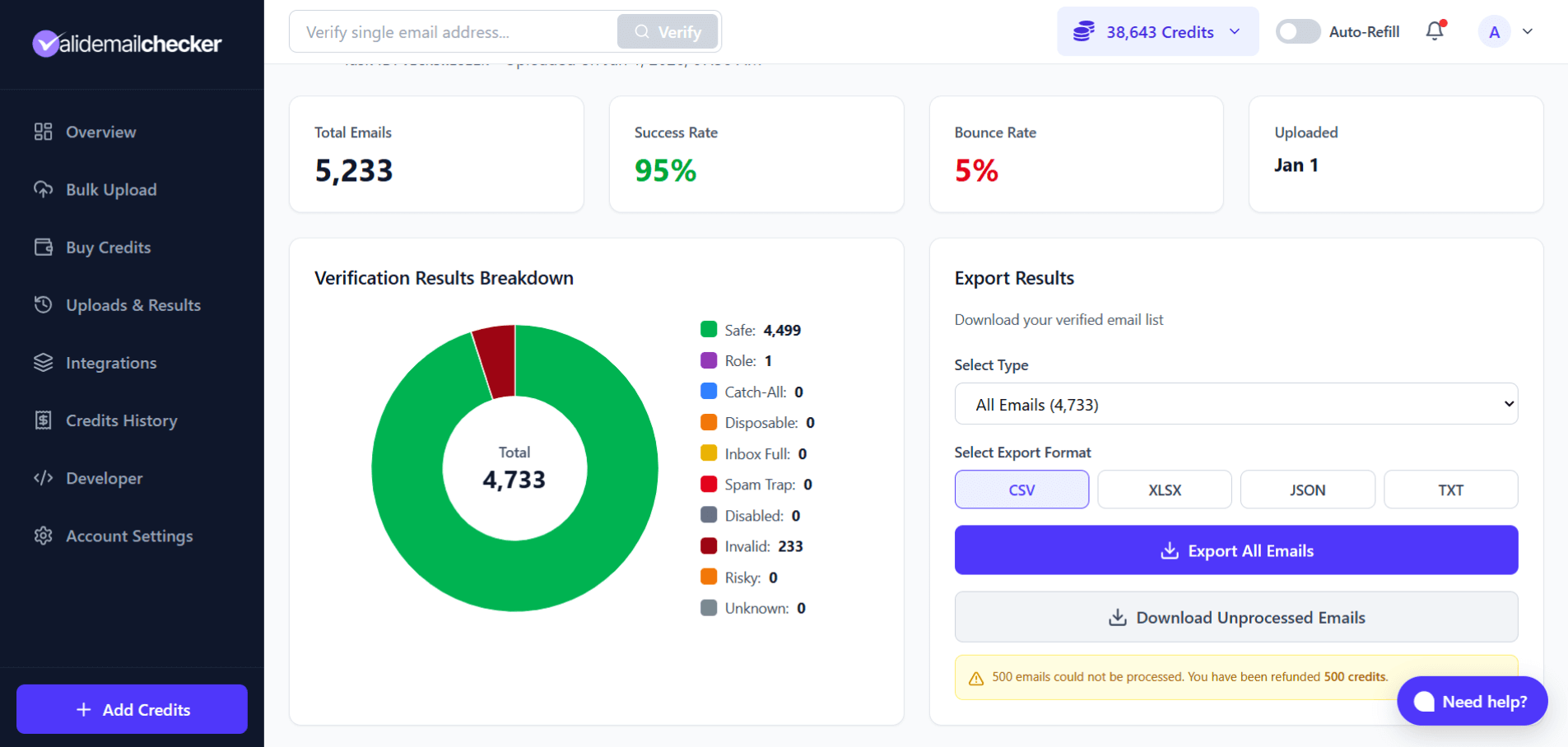
You land on the Verification Details page, which is the command center for that job.
What the details page shows
Quick stats
| Stat | What it shows |
|---|---|
| Total Emails | How many addresses were in the upload |
| Success Rate | Percentage that are safe to send |
| Bounce Rate | Percentage likely to bounce |
| Uploaded | When you started the job |
A success rate above 90% means the list is in good shape. Below that and you have cleanup to do before sending.
Verification breakdown
A donut chart breaks every address down by status — Safe, Role, Catch-All, Disposable, Inbox Full, Spam Trap, Disabled, Invalid, Risky, Unknown — with exact counts next to each slice.
Exporting your results
The Export Results panel sits on the right side of the page. Three decisions: what to include, what format, and click download.
Step 1 — choose what to download
The Select Type dropdown filters by status. Each option shows the count next to it, so you know exactly what you will get.
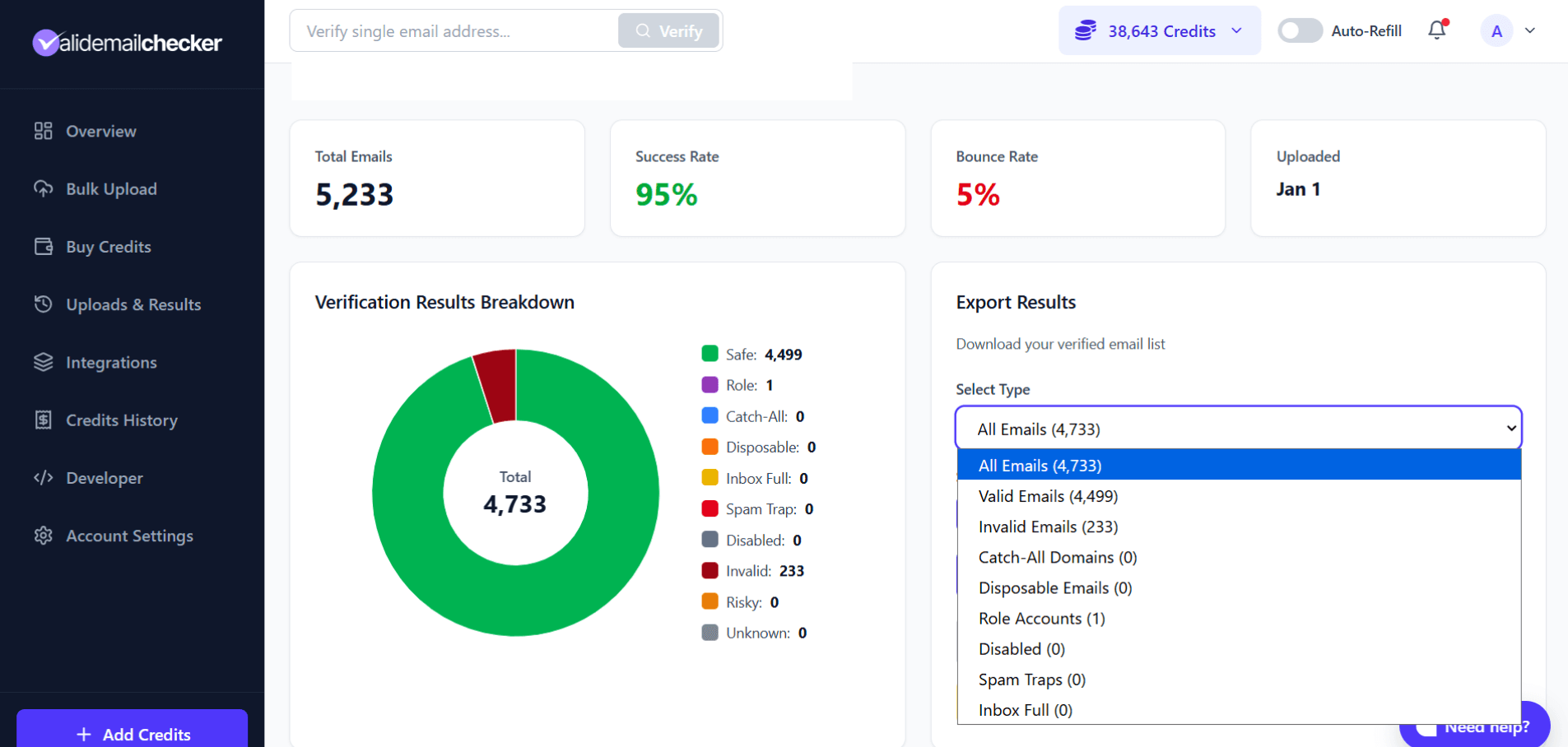
| Filter | Contents |
|---|---|
| All Emails | Complete results file |
| Valid Emails | Safe addresses only (ready to send) |
| Invalid Emails | Only bounced / non-existent addresses |
| Catch-All Domains | Only catch-all server addresses |
| Disposable Emails | Only temporary/throwaway addresses |
| Role Accounts | Only team emails (info@, support@) |
| Disabled | Only deactivated accounts |
| Spam Traps | Only honeypot addresses |
| Inbox Full | Only full mailboxes |
Step 2 — pick a format
| Format | Best for |
|---|---|
| CSV | Universal — Excel, Google Sheets, most tools |
| XLSX | Microsoft Excel with formatting preserved |
| JSON | API integrations, scripts, data pipelines |
| TXT | Plain list — one email per line, no extra columns |
Step 3 — download
Click Export (the button label changes to match your filter — Export All Emails, Export Valid Emails, and so on). The file downloads immediately.
What is in the downloaded file
Your export keeps every column from your original upload, plus 14 verification columns appended to the right.
| Column | Description | Example |
|---|---|---|
| The email address | john@example.com | |
| Status | Verification result | safe, invalid, catch_all |
| Score | Confidence score (0–100) | 98 |
| Domain | Email domain | example.com |
| Safe to Send | Quick yes/no | Yes |
| Deliverable | Will it deliver? | Yes |
| Free Email | Gmail/Yahoo/etc.? | No |
| Disposable | Throwaway? | No |
| Catch-All | Accepts everything? | No |
| Role Account | Team email? | No |
| Spam Trap | Honeypot? | No |
| Inbox Full | Mailbox full? | No |
| Disabled | Account deactivated? | No |
| MX Found | Mail server exists? | Yes |
| Verified Date | When the check ran | 01/01/2026, 11:33 AM |
Your original data is preserved
If your upload included additional columns (names, company, notes, custom IDs), they survive intact. We append our columns to the right — we never delete or reorder yours.
Original file:
email,first_name,company
john@acme.com,John,Acme Inc
Downloaded results:
email,first_name,company,Status,Score,Domain,Safe to Send,...
john@acme.com,John,Acme Inc,safe,98,acme.com,Yes,...
Downloading unprocessed emails
If your job completed with a warning, some servers were unreachable during verification. A separate Download Unprocessed Emails button appears for those.
A banner near the export panel tells you what happened, for example:
What to do with the unprocessed file:
- Download the unprocessed list.
- Wait a day or two — server outages are usually short-lived.
- Re-upload the file for another attempt.
- Most will verify successfully on the retry.
You were already refunded for the unprocessed rows, so re-verifying costs you nothing extra.
TXT format: just the emails
TXT exports give you a flat list of email addresses, one per line — no header row, no extra columns:
john@example.com
sarah@company.org
mike@business.net
Useful when you need a clean list to paste somewhere or to feed into a tool that only takes plain text. If you need the verification details, pick CSV, XLSX, or JSON instead.
JSON format: for developers
JSON gives you structured data, ideal for feeding into a CRM, custom scripts, or data pipelines:
[
  {
    "email": "john@example.com",
    "status": "safe",
    "score": 98,
    "domain": "example.com",
    "safe_to_send": true,
    "deliverable": true,
    "free_email": false,
    "disposable": false,
    "catch_all": false,
    "role_account": false,
    "spam_trap": false,
    "inbox_full": false,
    "disabled": false,
    "mx_found": true,
    "verified_at": "2026-01-01T11:33:00Z"
  }
]
The 15-day retention window
The 15-day window is a privacy choice, not a storage limit — see how we protect your data for the full reasoning. For practical purposes: pull your file as soon as the job finishes, especially for important lists.
Tips
Use filters strategically
Instead of downloading everything and filtering in Excel, use the built-in filter dropdown. Need only good emails? Download Valid Emails. Want to audit invalids? Download Invalid Emails. Saves time and gives you exactly what you need.
Keep your original file
The download includes all your original columns plus verification data, but it is still worth keeping a backup of the raw upload. You never know when you might need the pre-verification version.
Download as many times as you want
Re-downloading does not consume anything. Pull the same file in CSV, then XLSX, then JSON if you want — your job stays available until the 15-day window closes.
Common questions
Why is my file empty?
If you picked a filter (say, "Spam Traps") but the count next to it is 0, you will download an empty file. Check the count in parentheses before exporting.
Can I download directly to Google Sheets?
Not directly, but: download as CSV, open Google Sheets, File → Import → Upload. Ten seconds end to end.
What if I need the results after 15 days?
Download before the deadline. Once deleted, results cannot be recovered. If you miss the window, you will have to re-upload and re-verify the list — which costs credits again.
Quick reference
| Feature | Details |
|---|---|
| Formats | CSV, XLSX, JSON, TXT |
| Filters | All, Valid, Invalid, Catch-All, Disposable, Role, Disabled, Spam Trap, Inbox Full |
| Original data | Preserved — verification columns appended, never replacing yours |
| Columns added | 14 verification fields |
| Retention | 15 days, then auto-deleted |
| Re-downloads | Unlimited within the retention window |
Next steps
Related questions
Still stuck? Email support