
Understanding your verification results: every column explained
You downloaded your verification results. Now what?
A spreadsheet of fifteen-odd columns can look intimidating on first open. Once you know what each one means, list cleaning becomes mechanical. This page walks you through every column, every status, and a few segmentation strategies that pay off.
Opening the file
Your download (CSV or XLSX) opens in any spreadsheet tool:
- Microsoft Excel — double-click.
- Google Sheets — File → Import → Upload.
- Numbers (macOS) — double-click.
- LibreOffice Calc — double-click.
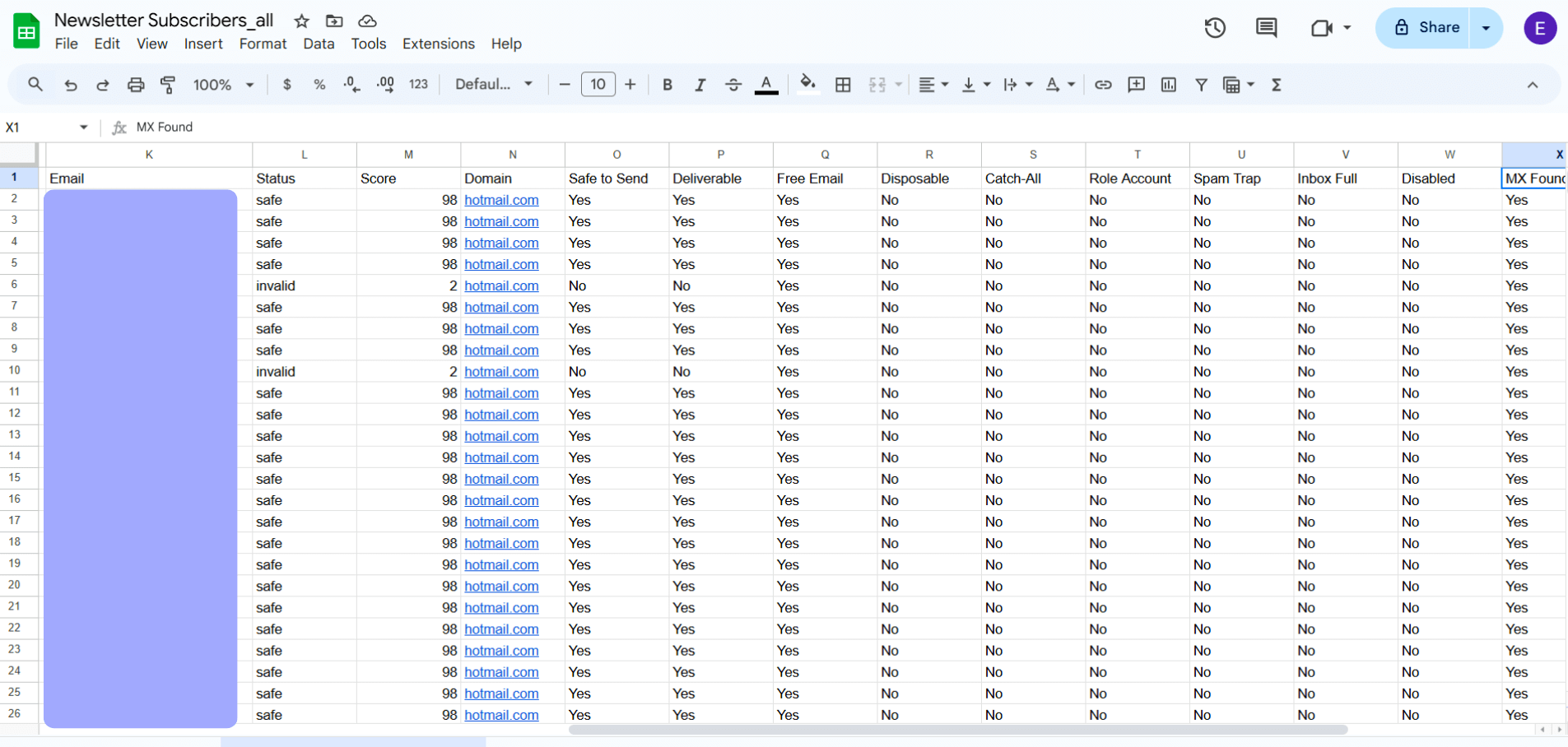
Every column, explained
Your results file contains 14 verification columns appended to any columns from your original upload. Here is what each one tells you.
Core columns
| Column | What it shows | Why it matters |
|---|---|---|
| The address being evaluated | The address itself | |
| Status | Verification result (safe, invalid, etc.) | The single most important column — drives every decision |
| Score | Confidence score 0–100 | Higher = safer to send |
| Domain | Email domain (gmail.com, etc.) | Useful for spotting patterns in the list |
Quick-decision columns
| Column | Values | What it tells you |
|---|---|---|
| Safe to Send | Yes / No | Should you email this address? |
| Deliverable | Yes / No | Will the message likely arrive? |
If both say Yes, you are clear. These two columns are the fastest way to filter a list when you just want the good rows.
Detailed flag columns
| Column | If "Yes" | Action |
|---|---|---|
| Free Email | Gmail, Yahoo, Outlook, etc. | No action — informational only |
| Disposable | Temporary/throwaway email | Drop |
| Catch-All | Server accepts everything | Send with care |
| Role Account | Team email (info@, support@) | Keep, but expect lower engagement |
| Spam Trap | Honeypot | Drop immediately |
| Inbox Full | Mailbox is full | Retry later or drop |
| Disabled | Account deactivated | Drop |
| MX Found | Domain has mail servers | "No" means the address cannot be delivered to |
Timestamp column
The Verified Date column shows when each row was checked. Email lists decay — re-verify if results are more than 30–60 days old.
The Status column drives every decision
The status field is the north star of your results.
| Status | Score | Safe to send? | Action |
|---|---|---|---|
| safe | 98 | Yes | Send confidently |
| role | 93 | Yes | Send (segment separately) |
| catch_all | 71 | Maybe | Test small batch first |
| risky | ~50 | Maybe | Proceed cautiously (uncommon in practice) |
| disposable | 30 | No | Drop |
| inbox_full | 20 | Maybe | Retry later |
| disabled | 4 | No | Drop |
| invalid | 2–3 | No | Drop |
| spamtrap | ~3 | Never | Drop immediately |
| unknown | 0 | Uncertain | Retry or skip (credit refunded) |
Filtering your results
The fastest way to clean a list is to filter in your spreadsheet tool rather than scrolling through thousands of rows.
In Excel
- Select your header row.
- Data → Filter.
- Click the dropdown arrow on any column header.
- Pick the values you want to see.
In Google Sheets
- Select your header row.
- Data → Create a filter.
- Click the filter icon on any column.
- Check or uncheck values to filter.
Useful filters
- Only good emails. Filter Status =
safe. - Everything that should be removed. Filter Safe to Send = No.
- Risky-but-not-dead. Filter Status =
catch_all,role, orinbox_full. - Spam traps only. Filter Spam Trap = Yes.
What to do with each status
Safe (status: safe)
Action: add to your main sending list. The mailbox exists, accepts mail, and is active. This is your gold. Filter Status = safe, copy to a new sheet, and import into your email tool.
Role (status: role)
Action: keep, but segment. Role accounts (info@, support@, sales@) are valid and will receive your message, but multiple people may read them and reply rates are typically lower. Use different messaging that acknowledges you are reaching a team, not an individual.
Catch-All (status: catch_all)
Action: test before bulk sending. The server accepts everything, so we cannot confirm the specific mailbox. Most catch-all addresses are real, but some are not.
Best practice: segment into their own list, send to a 10–20% sample, monitor bounces, then decide whether to send to the rest. See the complete catch-all guide.
Inbox Full (status: inbox_full)
Action: retry later or drop. The mailbox exists but cannot accept new messages right now. Often a sign of an abandoned account. Re-verify in a week or two, or simply drop them if you have seen this status repeatedly.
Disposable (status: disposable)
Action: drop. Temporary addresses from Guerrilla Mail, 10 Minute Mail, Mailinator, and similar. People use them specifically to avoid getting your email. Prevention tip: add real-time verification to your signup forms to block these before they enter your database.
Invalid (status: invalid)
Action: drop. These mailboxes do not exist. Sending will hard-bounce. Before deleting, scan for obvious typos worth correcting (gmial.com → gmail.com).
Disabled (status: disabled)
Action: drop. The account was deactivated by the provider or user. Common after employees leave a company or accounts get suspended for inactivity. These will hard-bounce.
Spam Trap (status: spamtrap)
Action: drop immediately. Honeypot addresses used by ISPs and anti-spam organizations to identify spammers. Sending to one can blacklist your domain. If you are seeing multiple traps, audit where your list came from — purchased lists, scraped data, and very old contacts are the usual culprits.
Unknown (status: unknown)
Action: retry or skip. We could not verify these. The server timed out, used aggressive anti-verification measures, or rate-limited the check. Your credits were already refunded automatically. Retry later if the contacts are valuable.
Segmentation strategies
Smart marketers do not blast one message to everyone. They segment.
Basic segmentation
| Segment | Who is in it | How to use it |
|---|---|---|
| Primary | Safe emails only | Main campaigns, important announcements |
| Secondary | Role + Catch-All | Less frequent, more targeted |
| Re-engage | Inbox Full | Win-back campaign after 30 days |
| Do Not Send | Invalid, disposable, spam trap, disabled | Archive or delete |
By domain type
| Segment | Examples | Profile |
|---|---|---|
| Free email users | Gmail, Yahoo, Outlook | Personal accounts, B2C focus |
| Business email users | @company.com | Professional, B2B focus |
Business addresses often have higher engagement for B2B campaigns. Free addresses dominate B2C.
Calculating list health
Three metrics worth tracking after every cleanup.
Deliverability rate
(Safe + Role) ÷ Total × 100. Target 90%+ for a healthy list, 95%+ for excellent.
Bounce-risk rate
(Invalid + Disabled + Spam Trap) ÷ Total × 100. Keep this under 3%.
Unknown rate
Unknown ÷ Total × 100. Keep under 5%. Higher rates often mean a chunk of the list came from servers with unusual security configurations.
Worked example
A list of 10,000 addresses comes back like this:
- Safe: 8,500
- Role: 200
- Catch-All: 500
- Invalid: 600
- Disposable: 100
- Spam trap: 10
- Unknown: 90
Deliverability rate: (8,500 + 200) ÷ 10,000 = 87%. Needs work.
Bounce-risk rate: (600 + 10) ÷ 10,000 = 6.1%. Too high — drop invalid and spam-trap rows immediately.
Action: drop invalid and spam traps, re-verify Unknown after a week, then re-run the math.
How often to re-verify
| Scenario | Recommended frequency |
|---|---|
| Active sending list | Every 30–60 days |
| Before a major campaign | Always verify first |
| Imported or purchased list | Immediately (and rethink the source) |
| List unused for 90+ days | Verify before sending anything |
Signs your list needs cleaning
- Bounce rate above 2%.
- Open rates trending down.
- Increasing spam complaints.
- Emails landing in spam folders more often.
- Blacklist warnings from your ESP.
Common questions
Should I keep invalid emails or drop them?
Drop them. There is no value in keeping addresses that do not exist. They will never convert, and attempting to send hurts your sender reputation.
What about catch-all addresses?
Keep them, treat them carefully. Many are real, but you cannot confirm individual mailboxes. Test small batches first.
Why does my list have so many spam traps?
You probably acquired addresses from a questionable source — bought a list, scraped contacts, or kept years-old unverified data. Drop the traps and reconsider where new addresses come from.
Should I try to fix typos in invalid addresses?
Only if the typo is obvious (gmial.com → gmail.com) and you have another way to confirm with the person. Do not guess — you might create a different valid address belonging to someone else entirely.
After-results checklist
- Export "Safe" emails as your primary sending list.
- Move Role and Catch-All into their own segments.
- Drop Invalid, Disposable, Spam Trap, and Disabled rows.
- Decide on Inbox Full — retry or drop.
- Decide on Unknown — retry or skip.
- Import the cleaned list into your email platform.
- Schedule the next verification in 30–60 days.
Next steps
Related questions
Still stuck? Email support