
Profile settings: personal info and email notifications
Your Profile tab is where you manage personal info and decide which emails the system sends you. Everything here is optional except your account email — that one is locked to whatever you signed up with.
Getting there
- Click Account Settings in the sidebar.
- Select the Profile tab.
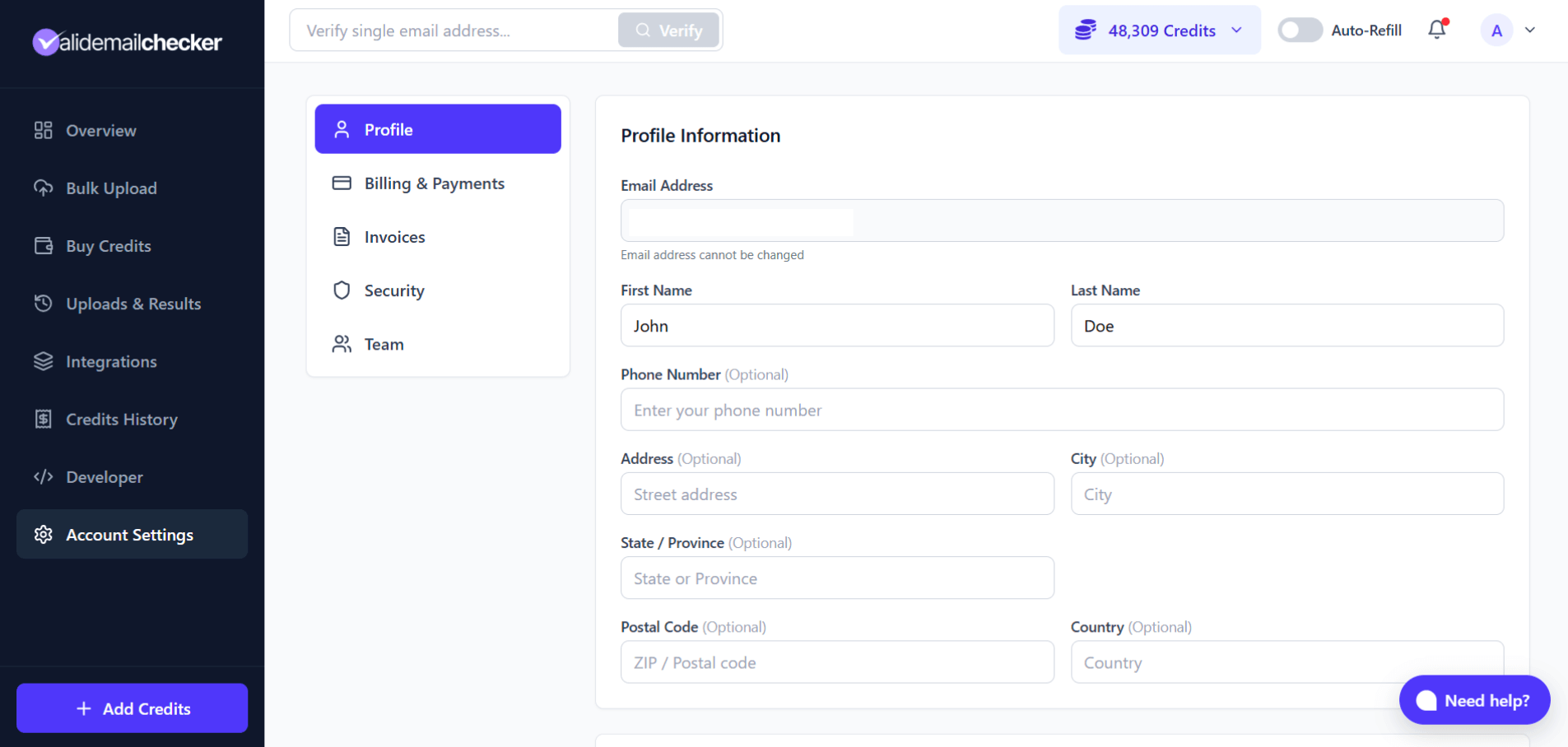
Profile information
Email address
Your email address is shown but cannot be edited. It is the address you used at signup and is the login identifier for the account. Everything that the system sends you — verification confirmations, invoices, security alerts, password resets — goes to this address. It is also the address support uses if you reach out to us.
If you need a different email address on the account, the only path is to delete the account and create a new one with the address you want. Nothing transfers between accounts: credits, history, API keys, and integrations all reset. Weigh that cost against the value of changing the address.
Name
First and last name. Appears on downloaded invoices and on any support correspondence we send. If you are running this for a business, putting your real name here makes invoices look right for your accountant; if you are running it personally and want privacy on invoices, leave it blank and let the company name from Invoice Settings carry the document instead.
Phone number (optional)
Used only if you ask support for a callback. We do not call out of the blue, we do not send SMS alerts, and we do not share the number with anyone outside Valid Email Checker. Totally optional — leave blank if you prefer email-only contact.
Address (optional)
Street, city, state/province, postal code, country. All optional. Two reasons to fill them in:
- They pre-populate the Invoice Settings tab. Businesses get a properly formatted address on every invoice without typing it twice.
- Country selection helps us route support requests to the right region during off-hours.
Address is never used for marketing, never shared with third parties, and never appears on any public surface. If you are a sole trader and your home address is also your business address, that is fine — the address only shows on your own downloaded invoices.
Email notifications
Four toggles control which emails the system sends. None of these are marketing — every one is transactional or status-driven. The toggles default to on for new accounts so you do not miss critical events; turn off whichever ones you find too noisy.
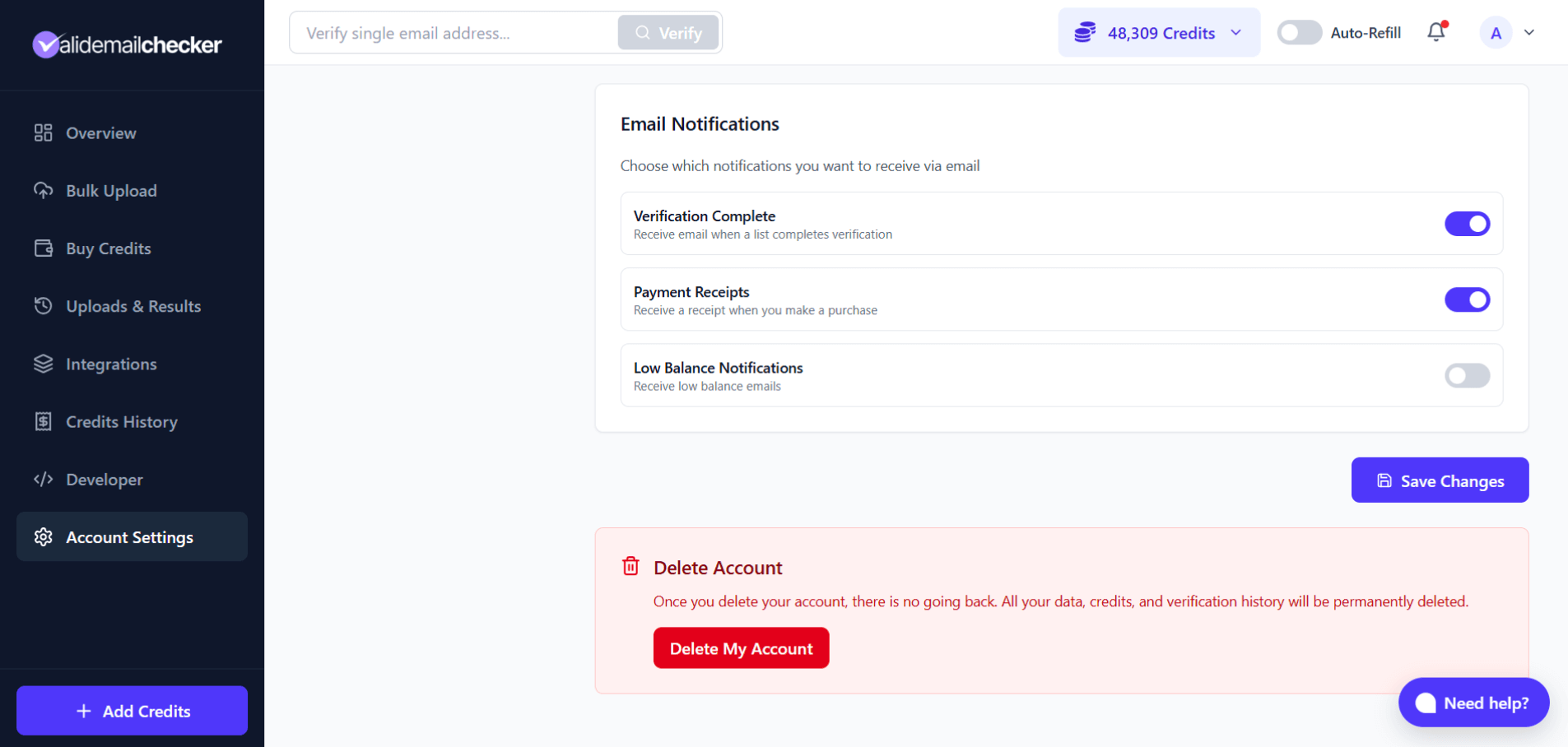
Verification complete
*"Receive email when a list completes verification"* — fires once per bulk job when status flips to completed or completed-with-warning. The email includes the job name, total addresses checked, the success-rate breakdown, and a direct link to the results page.
Useful if you regularly upload large lists and step away from the dashboard while they process. Keep it on if your typical pattern is "upload, go to lunch, come back" — the email arrives in your inbox the moment the job is ready. Visible to both account owners and team members; everyone gets a copy of completion notices for their own uploads.
When to turn off: high-volume users running dozens of bulk jobs a day who find the email volume more noise than signal. The Uploads & Results page already shows live progress, so the email is redundant if you are actively watching the dashboard anyway.
Payment receipts
*"Receive a receipt when you make a purchase"* — fires once per successful credit purchase. PAYG packs, subscription charges, auto-refill top-ups, and one-time renewal payments all generate a receipt. The email includes the invoice number, amount, payment method (last 4 digits of the card or the crypto transaction ID), and credits added.
Most accounts leave this on for audit-trail reasons — even if you never read the email, having one per charge in your inbox makes month-end accounting easier than digging through the Invoices tab. Owner-only: team members never see this toggle.
Subscription updates
*"Receive emails about subscription renewals, plan changes, and cancellations"* — fires on every subscription state change. Specifically:
- Successful renewal at the start of a new billing cycle.
- Plan upgrade confirmation (with the prorated amount you paid).
- Scheduled downgrade confirmation (with the date it takes effect).
- Cancellation confirmation (with the grace-period end date).
- Scheduled downgrade cancelled (if you reverse a pending downgrade before renewal).
- Failed renewal payments with retry instructions.
Strongly recommended to keep on for any account with an active subscription. Even if you remember when your billing date is, the failed-renewal email is the early warning that gives you time to update the card before access actually lapses. Owner-only — team members never see subscription change emails since they cannot change the subscription anyway.
Low-balance notifications
*"Receive low balance emails"* — fires when your total balance drops below a threshold you set. When you enable the toggle, two more fields appear:
- Threshold — credit level that triggers the alert (default 1,000). Set it above your average daily usage so the alert arrives with enough runway to take action.
- Notification emails — comma-separated list of addresses that receive the alert. Use this if your finance team wants a copy:
you@company.com, finance@company.com. Up to 10 addresses; anything beyond gets truncated.
The alert fires once per balance-drop event, then suppresses repeat alerts at the same threshold until either (a) your balance rises back above the threshold and falls again, or (b) you change the threshold value. This prevents the same low-balance state from spamming the same inbox over and over.
Owner-only. If you already have auto-refill enabled, low-balance alerts are less critical — the system tops up automatically before the balance reaches zero. They are still a useful safety net if auto-refill hits its monthly cap or three consecutive payment failures auto-disable it. The two features complement each other: auto-refill handles the routine top-ups, low-balance alerts handle the edge cases.
Saving changes
- Make your changes — profile fields, notification toggles, or both.
- Scroll to the bottom and click Save Changes.
- A confirmation toast appears in the corner of the dashboard once the update is committed.
Changes take effect immediately. No re-login needed and no propagation delay — the next email the system would have sent uses the new preferences. If you turn off a toggle then trigger an event that would have emailed you (say, a verification just completes), no email goes out. If you turn one back on after, future events resume sending.
If you change the low-balance threshold, the suppression state resets — the system treats the new threshold value as a fresh setting and the next time you cross it, the alert fires (regardless of whether you got a recent alert on the previous threshold).
Other Account Settings tabs
| Tab | What it does | Full guide |
|---|---|---|
| Billing & Payments | View subscription, manage payment methods, view credit usage | Managing your subscription |
| Invoices | Download past invoices, configure billing details | Invoices and receipts |
| Security | Change password, set up 2FA, review sessions | Security settings |
| Team | Invite and manage team members | Inviting team members |
For team members
If you joined as a team member rather than the account owner, your Profile tab is trimmed down to what you can actually act on.
What you can do:
- Edit your own name, phone, and address.
- Toggle Verification Complete notifications (you only get notified about your own uploads, not the owner's).
What you do not see:
- Payment Receipts toggle — owner pays, owner gets the receipt.
- Subscription Updates toggle — only the owner can change the subscription, so only the owner needs these emails.
- Low-Balance Notifications toggle — owner manages the credit balance, so owner is the one who needs alerts.
- The Billing & Payments and Invoices tabs entirely.
This split keeps team-member accounts focused on actually verifying emails without surfacing billing controls they cannot use anyway. Your own activity (uploads, API calls if you have a key) still counts against the shared account balance, but the financial controls stay with the owner.
Common questions
Can I change my account email?
No. The email address you signed up with is permanent. There is no UI to edit it and support cannot change it manually either — it is locked to the auth record. If you need a different email, the path is to delete the account and create a new one with the right address. Your data does not transfer between accounts: credits, API keys, integrations, and verification history all reset. Most people who ask about this end up keeping the existing email and using forwarding rules on the new address instead.
Do I have to fill in my address?
No. Every address field is optional. Only fill them in if you want them on downloaded invoices (your accountant might need that), or for your own records. Skipping address completely is fine — invoices still generate, they just show your name and the account email instead of a postal address.
Will turning notifications on flood my inbox?
No. We only send the specific notifications you've enabled, and only when the event actually fires. Verification Complete is one email per bulk job. Payment Receipts is one email per purchase. Subscription Updates is one email per subscription state change (typically a handful per year). Low-Balance fires once per threshold-cross event with built-in suppression so it can't double-fire. No marketing emails come out of these toggles. If you genuinely want a quiet inbox, leave them on anyway — losing visibility into a failed renewal or a finished verification is usually worse than three extra transactional emails a month.
How do I add multiple emails to low-balance alerts?
Comma-separated in the Notification emails field. Example: you@company.com, finance@company.com, ops@company.com. Up to 10 addresses are accepted. Each address gets the same alert simultaneously when the threshold trips. Useful when responsibilities are split — devs watch verification health, finance watches the budget side of credit consumption.
What email address does Subscription Updates send from?
All transactional emails come from noreply@validemailchecker.com. Add that address to your contacts or whitelist if your spam filter is aggressive. If you want to reply to a transactional email — say, you have a question about a charge — reply does not work; use support@validemailchecker.com or the in-app chat instead.
Can I forward notification emails somewhere else automatically?
For Payment Receipts and Subscription Updates, the cleanest path is a forwarding rule in your email client (Gmail filters, Outlook rules) — set up a rule that catches anything from noreply@validemailchecker.com and forwards it to your accountant or shared inbox. For Low-Balance, the built-in multi-recipient field is the right tool — comma-separate the addresses in the field itself instead of forwarding.
I turned off all notifications. Did I break anything?
No. The dashboard still works exactly the same — toggles only control emails, not in-app behavior. You can still see verification results, manage your subscription, and monitor your balance from the dashboard. The toggles only suppress the outbound email. Note that critical security emails (password reset, 2FA codes, login from a new device) are not gated by these toggles and always send.
Next steps
Related questions
Still stuck? Email support