
Team member guide: what you can do on a shared account
Welcome to the team. This guide is for you specifically — the team member, not the owner. It walks through what your view of the dashboard looks like, what you can and cannot do, how to find your personal usage stats, and what happens in edge cases like suspension or removal.
Getting started
When the account owner invited you, the system sent you an email containing:
- A link to app.validemailchecker.com/auth/login.
- Your login email (the address the owner used).
- A temporary password generated by the system.
Sign in with those credentials. You land on a dashboard that looks like the main Valid Email Checker dashboard with some sidebar items hidden — Buy Credits, Developer, and Billing tabs are owner-only and do not appear in your view.
What you have access to
| Feature | Access |
|---|---|
| Single email verification (top of dashboard) | ✅ Yes |
| Bulk list upload + Uploads & Results | ✅ Yes |
| Download your own verification results | ✅ Yes |
| Credits History (read-only) | ✅ Yes |
| Connect and use your own integrations | ✅ Yes |
| Profile settings (name, phone, address) | ✅ Yes |
| Security settings (password, 2FA, sessions) | ✅ Yes |
Verification works exactly the same for you as it does for the account owner. Same engine, same speeds, same result statuses, same export options. The only difference is that the credits come from the shared pool, not from a personal balance.
What you do NOT have access to
| Feature | Access |
|---|---|
| Buy Credits | ❌ Owner only |
| Invoices and billing details | ❌ Owner only |
| Developer (API key generation) | ❌ Owner only |
| Auto-refill settings | ❌ Owner only |
| Low-balance notification config | ❌ Owner only |
| Subscription management | ❌ Owner only |
| Invite or manage other team members | ❌ Owner only |
These items are not visible in your sidebar or Account Settings menu. The restrictions are enforced both in the UI and at the API/backend layer — even if you tried to navigate to a URL directly, the backend would return 403.
Your team dashboard
Account Settings → Team is your personal usage page (not the same Team tab the owner sees). It shows the shared account credits at the top and your individual stats below.
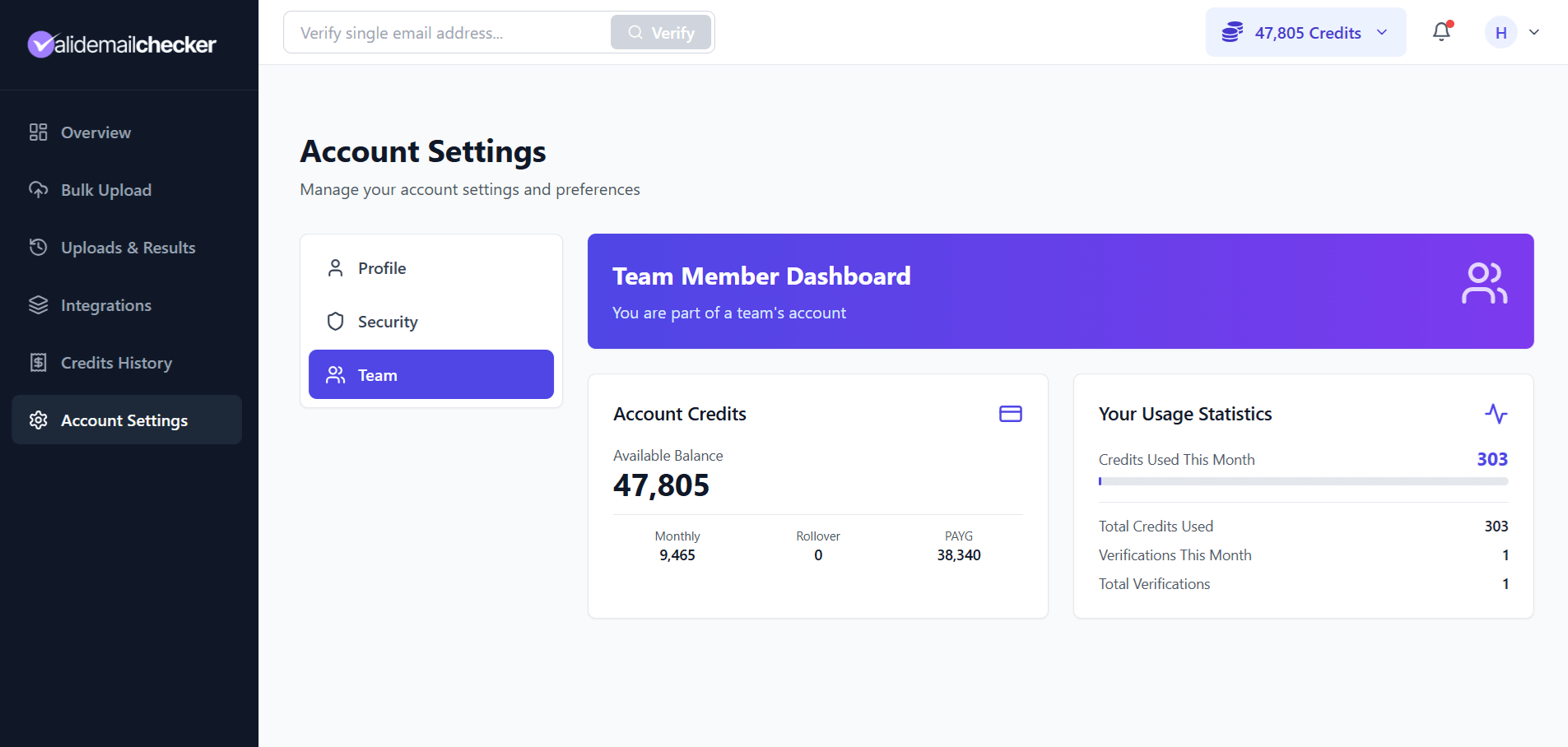
Account credits (shared)
The account-wide credit balance. Two buckets in the current product:
- Monthly — credits from the active subscription, reset on each renewal.
- PAYG — pay-as-you-go credits, never expire.
When you verify an email, credits are deducted from this shared pool. The owner sees the same balance you do — there are no per-member sub-pools.
Your usage statistics
| Stat | Description |
|---|---|
| Credits Used This Month | Your personal usage in the current billing month |
| Total Credits Used | Your all-time credit usage on this account |
| Verifications This Month | Number of verification jobs you have run this month |
| Total Verifications | All-time verification count under your member identity |
The owner can see these same stats for you and for every other team member. Usage is transparent across the account so the owner can make informed credit-purchasing decisions.
How shared credits work
When you verify emails:
- Credits are deducted from the shared pool (Monthly bucket first, then PAYG).
- Your personal usage counter increases.
- The verification appears on the Uploads & Results page tied to your member identity.
- Results are associated with you specifically — you can re-download them anytime.
There is no separate per-member credit allocation. Everyone draws from the same pool. If the pool runs dry, all team members are affected at the same time.
Profile and security
You have full control over your own credentials and preferences:
Profile settings
Account Settings → Profile lets you set name, phone, address, and your notification preferences. The notification panel is trimmed compared to the owner — you see Verification Complete (alerts when one of your bulk jobs finishes) but not Payment Receipts, Subscription Updates, or Low-Balance Notifications (those are owner-only because they relate to billing). See account profile settings for the full breakdown.
Security settings
Account Settings → Security gives you the full security toolkit: change password, enable 2FA, review active sessions. Strongly recommend enabling 2FA — shared accounts have more attack surface than personal ones, and 2FA is the single best mitigation.
If you get suspended
The account owner can pause your access temporarily. If this happens:
- You receive an email notification.
- Your current session is terminated immediately — you are signed out.
- You cannot sign in until the owner reactivates you.
- Your data and verification history are preserved.
If you think the suspension was a mistake, contact the account owner directly. They can reactivate you with one click — your same credentials work again immediately. No new invitation needed.
If you get removed
Removal is permanent. If the owner removes you:
- You receive an email notification.
- Your current session is terminated.
- You cannot sign in again with those credentials.
- Your previous verifications stay on the parent account (those are the owner's data).
To regain access, the owner would need to send you a new invitation — that creates a fresh account record with a new password. Your historical usage stays in the parent account's records but is not "yours" to retrieve.
Running low on credits
You cannot buy credits yourself. If the shared balance is getting low, let the account owner know. They have three paths:
- Buy a PAYG top-up (instant).
- Upgrade the subscription (more credits per cycle).
- Enable auto-refill (top up automatically when the balance dips).
Tell them early. Running out of credits mid-project is more disruptive than buying a top-up a day before you need it.
Common questions
Can I see other team members?
No. Your dashboard only shows your own usage. The full team member list is owner-only.
Can I invite other people to the team?
No. Only the owner can invite. The system rejects invite attempts from team members with 403 Team members cannot invite other team members.
What happens to my verifications if I am removed?
Your verification results stay on the parent account. The owner retains access to all the data. From your perspective, the results are no longer accessible once you have been removed.
Can I export my verification history?
Yes. You can download any verification job you ran in whatever format (CSV, XLSX, JSON, TXT) using the export panel on the Verification Details page. This works the same as the owner experience.
Who do I contact for billing questions?
The account owner. They manage all billing, invoices, and credit purchases. You do not have visibility into payment methods, charges, or invoices on the account.
Can I create my own independent account later?
Yes, but with a different email address. You cannot have an independent account and a team-member account on the same email. If you want both, sign up for the independent one with a separate address (personal email if your current team account uses your work email, for example).
Quick reference
| I want to… | Where to go |
|---|---|
| Verify a single email | Top search bar on any dashboard page |
| Upload a bulk list | Bulk Upload in the sidebar |
| See my verification results | Uploads & Results |
| Check the credit balance | Header credit display, or Account Settings → Team |
| See my personal usage | Account Settings → Team |
| Change my password | Account Settings → Security |
| Enable 2FA | Account Settings → Security |
| Update my profile | Account Settings → Profile |
Next steps
Related questions
Still stuck? Email support