
Inviting team members: the complete guide
Valid Email Checker supports team accounts — a single owner with multiple team members sharing the credit pool. Useful when one person manages billing and several people do the actual verification work (agencies, in-house marketing teams, sales-ops setups, multi-region offices on one parent account). This guide walks through how invites work end-to-end, including the parts that are easy to misunderstand.
How team accounts work
- One owner per account (the person who originally signed up).
- Zero or more team members, each with their own login credentials.
- All members draw from a single shared credit pool funded by the owner.
- Every verification logs which member ran it (audit trail).
- The owner retains full control: suspend, reactivate, or remove any member at any time.
- Team members cannot purchase credits, generate API keys, see billing details, or invite other members.
Pricing is per-credit, not per-seat. You pay for credits used, not for the number of people on the account. Two members or twenty, the math is identical.
Who can invite
Only account owners. If you joined a team as a member, the Invite Members action is not visible to you — the create-team-member edge function explicitly rejects invites that originate from non-owner accounts.
How to invite
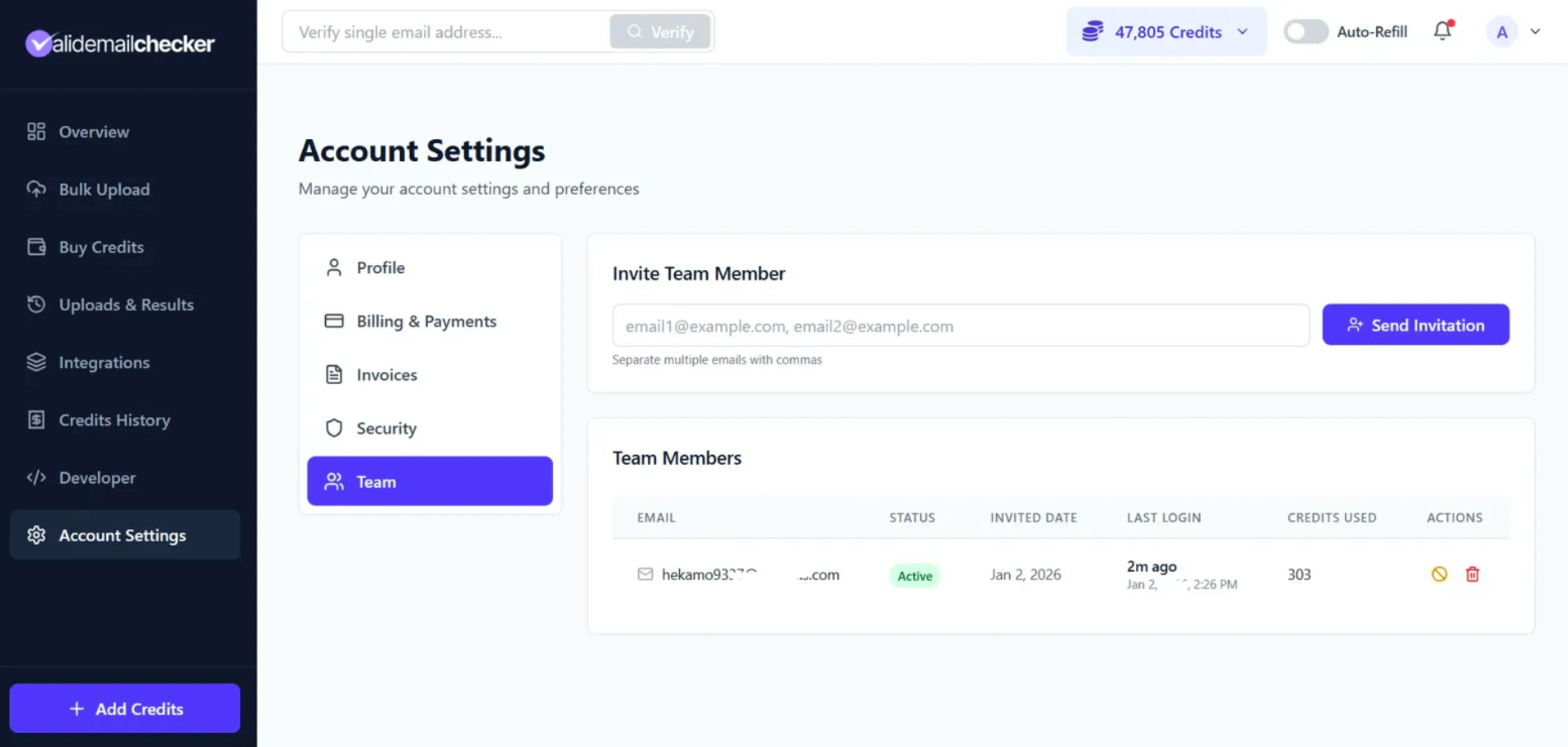
- Open Account Settings → Team in the dashboard sidebar.
- Locate the invite section near the top of the page.
- Enter one or more email addresses. Multiple invites go in a single comma-separated input:
john@company.com, sarah@company.com, mike@company.com. - Click Send Invitation.
What happens behind the scenes
When you click Send Invitation, the dashboard does the following for each address:
- Generates a secure random password locally in your browser (you never see it; the UI never types it).
- Calls the
create-team-memberedge function on the backend. - The function creates the team-member account immediately with that password as the initial credential.
- An invitation email is sent to the new member with their login email and the generated password.
- The member can sign in immediately with those credentials — there is no "click this link to accept" round-trip.
Invite validation
The system rejects invalid invites before creating the account. Common rejection reasons:
| Check | Behavior |
|---|---|
| Invalid email format | Error shown; that address skipped; others continue |
| Duplicate | Error if the address is already a team member on your account |
| Self-invite | You cannot invite your own account email |
| Already registered | Error if the email already has its own account (independent or team-member elsewhere) |
| Rate limit | Short cooldown between invite batches to prevent abuse — wait a few seconds if you are inviting many people at once |
If you invite 10 emails and 2 fail validation, the 8 valid ones still get created. The UI tells you which ones succeeded and which need attention.
The new member experience
From the team member side, the invite arrives as an email containing:
- Their login email (the one you invited).
- A temporary password (the one your browser generated).
- A link to sign in at
app.validemailchecker.com/auth/login.
They log in with those credentials and land on a dashboard that looks like the owner dashboard with some sidebar items hidden (no Buy Credits, no Developer, no Billing & Payments). The first thing they should do is change the password from Account Settings → Security — the generated password is a one-time bootstrap, not a permanent credential. See the team member guide for the full onboarding flow.
Member statuses
| Status | Meaning |
|---|---|
| Pending (yellow) | Invitation sent, member has not signed in yet |
| Active (green) | Member has signed in and can use the account |
| Suspended (red) | Owner has paused their access — see managing team members |
Pending invitations do not expire. If a member never signs in, the invite stays open until you remove it. To resend with a fresh password, remove the pending entry and invite the same email again.
After invitation: the member list
Each invited member appears on the Team tab with the following columns:
| Column | Description |
|---|---|
| Their login email | |
| Status | Pending, Active, or Suspended |
| Invited Date | When you sent the invitation |
| Last Login | When they last signed in (exact timestamp visible on hover) |
| Credits Used | Credits they have consumed this month |
| Actions | Suspend/reactivate icon, remove icon |
Best practices
Use work emails
Invite team members with their work addresses, not personal ones. Makes audit trails clearer, makes future ownership transitions (employee changes role, leaves company) easier, and keeps the team boundary aligned with the business unit.
Start small
If you are new to team accounts, invite one or two people first and watch the credit-consumption pattern for a billing cycle. Easier to spot misconfigurations early than to debug five surprising usage patterns at once.
Set 2FA expectations on day one
Tell new members to enable 2FA immediately on their account. A shared account is only as secure as its weakest credential — one team member with a reused password is the most common attack vector on shared accounts.
Communicate usage expectations
Let team members know what the account is for, how the shared credit pool works, what verifications are appropriate, and that their per-member usage is visible to you. Most credit-overage surprises come from members assuming "the company is paying so volume doesn't matter" — clear expectations up front prevent that.
Common questions
Is there a limit to how many team members I can have?
No hard limit. Invite as many as you need. No per-seat pricing applies — you pay only for credits consumed.
Do team members need their own subscription?
No. Team members use the owner's credits exclusively. They have no independent billing path.
What if someone does not receive their invitation email?
Check spam first. If still missing after a couple of minutes, remove the pending invite from your Team page and re-invite the same address — that generates a fresh password and a fresh email. If multiple invites to the same domain fail to land, the recipient organization's mail server may be blocking automated emails; switch to a personal address as a workaround.
Can team members invite other team members?
No. Only owners can invite. The create-team-member function checks the inviter's role and rejects invite attempts from team members with 403 Team members cannot invite other team members.
Can I resend an invitation?
Yes — remove the pending invitation and send a new one. That generates a fresh password and a fresh email.
Next steps
Related questions
Still stuck? Email support